Showing posts with label iptv. Show all posts

Thursday, May 24, 2012

How To Change The Aspect Ratio On Your Uverse Box

There are times that your tv screen is too small and the blue HD light is off on your Uverse set top box. You don't need to worry because the aspect ratio on your Uverse receiver is not properly set.  Before changing there are a few things that you need to consider:
1. your tv is an HD TV.
2. You are using either a component cable (pr, pb, y, and audio cables red and white) or an HDMI cord.
3. you are subscribed to Uverse HD technology fee which is $10/month for customers subscribed to ubasic, u200 and u300. HD is part of u450 package.
4. The setting on your TV should match the aspect ratio of your box. (720p or 1080i/p)


Below are the steps on how to change the aspect ratio of your box:
1. Please press the menu button of your remote control and press ok. 
2. Use the right arrow to look for options.
3. Scroll down to system options and press ok.
4. Choose aspect ratio and press ok.
5. Press the right arrow to go to the 4 options of the aspect ratio and use the down arrow to choose 720p or 1080i.
6. Use the left arrow to click continue and then press ok.
7. It will give you the option to choose start test or cancel. Choose start test. 
8. You are only given aproximately 10-15 seconds to choose the settings. If you are seeing a black screen, that means that your TV does not comply to the requirements I mentioned above. But if you're seeing a picture in the background, press the save settings before the time runs out.


Saturday, February 18, 2012

Link Light Off On Uverse Receiver

I have shown you what the back of the Uverse box looks like. Now, we need to understand the lights on the receivers. It is good for you to understand the lights on your receiver so that you will know what troubleshooting steps you can do on your end before calling. Regardless of the brand and unit model, Uverse receivers have the same LED lights.

1. Power-This is the oblong light usually found on the left hand side of your box. If it is off, make sure that the power cord is properly connected and plugged in to a working power outlet. The power light usually blinks after a reboot. It can blink up to 60 seconds. If it doesn't power on or continuously blink after rebooting, just call tech support and have it replaced.

2. Link-This light indicates if your set top box is getting sync/signal from the residential gateway. Check if the other boxes that you have at home are working fine. Who knows, it has something to do with the whole services. If it is affecting multiple set top boxes, try a sequential reboot. That means you need to start from the gateway which is your modem box. Once the modem is up and running, try rebooting the affected receivers. If it is just a single box, make sure that the coax cable is properly connected to the wall and correctly connected on the back of the box labeled to the wall video in. Or the ethernet cable (a telephone looking cord) is connected to any of the yellow outlined port labeled local ethernet on the back of the modem box (either 2wire 3800/3801). Make sure that the other end of the ethernet cord is properly connected to network on the back of your receiver. If the connection is correct and link light is still off, it is an inside wiring issue. Make sure you have the home wiring protection plan which is $5 a month so you won't have to pay for the dispatch and the replacement of cables.

3. HD- This is the only blue light on your receiver. If it is off then that means the aspect ratio is set to standard def only. If it is on, then 720p/1080i is turned on on your box. If it is, make sure your TV is hd capable and you are using either hdmi cable or component cable.

4. Record- This is the red light on your box. If the light is on that indicates that you are currently recording something. If this light stays on even if your not recording something try rebooting your box by holding down the power button for 5 seconds.


Friday, February 17, 2012

Understanding Your Uverse Box

This picture shows you the back of Uverse boxes regardless of the model. I hope this will help you understand how cables should be connected on the back of your box.


1. TO WALL (VIDEO IN)- Coaxial input for HPNA connection. The other end should always go to the wall.
2. HDMI- Connects to a high-definition TV or home theater receiver with an HDMI input (for a DVI input, use an HDMI-to-DVI adapter)
3. NETWORK- This is an ethernet cable which you can connect to any of the yellow outlined ethernet ports on the back of your 3800/3801 HGV modem.. 
4. COMPONENT RCA-component video outputs to an HDTV. y for yellow/green, pb for blue, pr for red. These are the usual colors. 
5. S-VIDEO-High quality video output to a VCR or TV that accepts S-Video. It carries video only; you must also connect to the TV or home theater receiver for audio.
6. OPTICAL- S/PDIF audio output to a digital home theater receiver.
7. VIDEO OUT-composite RCA-type video outputs to a TV, VCR, DVD recorder, or other device.
8. AUDIO OUT-L for red and R for white.
9. TO TV (VIDEO OUT)- Coaxial output to a TV or VCR.
10. USB- USB 2.0 connector.
11. POWER +12V DC- Connector for the DC power adapter.

additional information: 

COMPOSITE vs COMPONENT RCA


Thursday, February 16, 2012

Update On Uverse Channel Programming Changes

Cable TV service programming changes from time to time. Same goes to AT&T Uverse. Though they are usually able to renew or extend contracts, but in some cases they will no longer have rights to carry those channels. For more info please visit, att.com/fighting4you. Here are the changes:


February 2012: 
The impacted channels are ION East (channel 195), ION Life (channel 468), and qubo (channel 328 and channel 3061).
In addition the impacted local channels include: 
(1) For Alabama, in the Birmingham area, WPXH (channel 44 and 1044 in HD); 
(2) For California, in the Los Angeles area, KPXN (channel 30 and 1030 in HD); in the Sacramento area, KSPX (channel 29 and 1029 in HD); and in the
      San Francisco area, KKPX (channel 65 and 1065 in HD);
(3) For Connecticut, in the Harford area, WHPX (channel 26 and 1026 in HD);
(4) For Florida, in the Jacksonville area, WPXC (channel 21 and 1021 in HD); in the Miami area, WPXM (channel 35 and 1035 in HD); in the Orlando  
      area, WOPX (channel 56 and 1056 in HD); and in the West Palm Beach area, WPXP (channel 67 and 1067 in HD); 
(5) For Georgia, in the Atlanta area, WPXA (channel 14 and 1014 in HD);
(6) For Illinois, in the Chicago area, WCPX (channel 38 and 1038 in HD);
(7) For Indiana, in the Indianapolis area, WIPX (channel 63 and 1063 in HD);
(8) For Louisiana, in the New Orleans area, WPXL (channel 49);
(9) For Michigan, in the Detroit area, WPXD (channel 31 and 1031 in HD); and in the Grand Rapids area, WZPX (channel 43 and 1043 in HD);
(10) For Missouri, in the Kansas City area, WPXE (channel 55 and 1055 in HD), and KPXE (channel 50 and 1050 in HD);
(11) For New York, in the New York City area, WPXN (channel 31 and 1031 in HD);
(12) For North Carolina, in the Raleigh area, WRPX (channel 47 and 1047 in HD); and in the Greensboro area, WGPX (16 and 1016 in HD);
(13) For Ohio, in the Cleveland-Akron (Canton) areas, WVPX (channel 23 and 1023 in HD);
(14) For Oklahoma, in the Oklahoma City area, KOPX (channel 62 and 1062 in HD); and in the Tulsa area, KTPX (channel 44 and 1044 in HD);
(15) For Tennessee, in the Knoxville area, WPXK (channel 54 and 1054 in HD); in the Memphis area, WPXX (channel 50 and 1050 in HD); and in the  
        Nashville area, WNPX (channel 28 and 1028 in HD);
(16) For Texas, in the Dallas-Fort Worth areas, KPXD (channel 68 and 1068 in HD); in the Houston area, KPXB (channel 49 and 1049 in HD); and in the
        San Antonio area, KPXL (channel 26 and 1026 in HD).

March 2012:
The impacted national channels (in alphabetical order) are 5StarMAX (channel 840 and 1840 in HD), ActionMAX (channel 836 and 1836 in HD), ActionMAX West (channel 837 and 1837 in HD), ATMAX (channel 846 and 1846 in HD), Cinemax East (channel 832 and 1832 in HD), Cinemax West (channel 833 and 1833 in HD), HBO Comedy (channel 810 and 1810 in HD), HBO Comedy West (channel 811 and 1811 in HD), HBO East (channel 802 and 1802 in HD), HBO Family (channel 806 and 1806 in HD),  HBO Family West (channel 807 and 1807 in HD), HBO Latino (channel 814 and 1814 in HD), HBO Latino West (channel 815 and 1815 in HD), HBO Signature (channel 808 and 1808 in HD), HBO Signature West (channel 809 and 1809 in HD), HBO West (channel 803 and 1803 in HD), HBO Zone (channel 812 and 1812 in HD), HBO Zone West (channel 813 and 1813 in HD), HBO2 (channel 804 and 1804 in HD), HBO2 West (channel 805 and 1805 in HD), HDNet (channel 1105 in HD), HDNet Movies (channel 1106 in HD), MoreMax (channel 834 and 1834 in HD), MoreMAX West (channel 835 and 1835 in HD), New England Sports Network (NESN) (channels 712/713 and 1712/1713 in HD), OuterMAX (channel 844 and 1844 in HD), Smithsonian Channel (channel 118 and 1118 in HD), Star India Plus (channel 3706), ThrillerMAX (channel 838and 1838 in HD), ThrillerMAX West (channel 839 and 1839 in HD), TVB-V (channel 3664), and WMAX (channel 842 and 1842 in HD).


March 31, 2012:
The impacted national channel is Zee TV (channel 3702).

April 2012:
The impacted national channels (in alphabetical order) are Estrella (channel 3024), INSP (channel 564) and La Familia Cosmovision (channel 3056).

In addition, AT&T’s carriage agreement with Showtime Networks, Inc. is set to expire in April. The following channels (in alphabetical order) are potentially impacted:  FLIX (channel 890); Showtime (channel 852 and 1852 in HD); Showtime -West (channel 853 and 1853 in HD); Showtime Beyond (channel 860); Showtime Extreme (channel 858 and 1858 in HD); Showtime Extreme -West (channel 859 and 1859 in HD); Showtime Family (channel 862); Showtime Next (channel 864); Showtime Showcase (channel 856 and 1856 in HD); Showtime Showcase -West (channel 857 and 1857 in HD); Showtime Too (channel 854 and 1854 in HD); Showtime Too -West (channel 855 and 1855 in HD); Showtime Women (channel 866); Smithsonian Channel (channel 118 and 1118 in HD); The Movie Channel (channel 882 and 1882 in HD); The Movie Channel -West (channel 883 and 1883 in HD); The Movie Channel Xtra (channel 884 and 1884 in HD); and The Movie Channel Xtra -West (channel 885 and 1885 in HD). IMPORTANT NOTE:  Even if an agreement is reached between AT&T and Showtime, AT&T may modify the channel availability for the AT&T U-verse TV service by removing the Showtime channels listed above from the U300 lineup, the U400 lineup, the U450 lineup, and/or The Movie Package.  In the event the Showtime channels are removed from the U300 lineup, the U400 lineup, the U450 lineup, and/or The Movie Package, we will carry the Showtime channels consistent with the terms of any future agreement with Showtime (as permitted).

In addition, in the San Diego, CA market area, an impacted local channel is KUSI (channel 9 and 1009 in HD).


Please check my other blog on how to check your guide online so you will know if the channels have been modified.

Friday, February 10, 2012

What To Do If The Uverse Box Is Muted Or The Sound Is Too Low

      There are times in the middle of watching TV or when you don't do anything at all with your remote control, your TV seems to be muted or the volume is too low. And when you check the volume of your TV or sound system, the volume is maximized. Your tendency is to think there is something wrong with your Uverse cable box and you want to call tech support.
Before calling tech support:
1. First check if there is loose cables on the back of your tv, sound system and STB. Please don't argue with yourself that you didn't do anything or touch anything. Just double check. There's nothing wrong with double checking.

2. Try rebooting your box by holding down the power button for five (5) seconds. If the soft rebooting doesn't work, unplug the power cord and plug it right back in.

3. If it is still not working, try programming your remote control to work back with your AT&T cable box. How? This process is only for remote controls which are already programmed to work with their TVs.
3.1.Press and hold both the ATT and OK buttons at the same time.
3.2 Release and enter 955.
3.3 Press the ENTER button. Now try to turn the volume up. Make sure the volume is set to 25 which is the default volume of your box.
Once you get it working, don't forget to program the remote control to work with your device. Follow the steps below:
3.3.1. Press and hold both the ATT and OK buttons at the same time.
3.3.2. Release and enter 955 and press the mode key, example TV if you only have your tv or AUX if you have the remote control assigned to work with a sound system.
3.3.3 Press the ENTER button.
It is a little bit long process but try that while waiting for tech support. Because once you have done that, then the next step is to replace your Uverse cable box.

Tuesday, February 7, 2012

How To Program Uverse Black Remote Control Part 2 (For DVD's): S10-S3, S10-S2, S10-S1

This is a continuation of my blog regarding programming s10-s3. I have already given the manufacture codes for TV's. This time you will be seeing the codes for DVD's or Blu Ray DVD's. You can check the first part of this blog if you need help with programming your remote control to work with your tv by checking my archive, searching on this blog, or checking tag s10-s3.


I have arranged the codes alphabetically. Check the label and click the picture for you to get the codes.

FOR DVD's:
1. Press and hold both the DVD and the ENTER/OK buttons simultaneously.
2. Let go of the buttons and enter the code for the brand of your DVD.
3. To check if the code you have tried works or not, try powering on and off. If it doesn't work, try another code and follow the same steps.
4. Once you have the remote working, as a constant reminder, press the AT&T button to avoid any inconvenience.

FOR DVD'S/ Blu Ray DVD's:

figure 1. A-L

figure 2. L-S

figure 3. S-Z
Check Part 3. For other devices.

Monday, February 6, 2012

How To Program Uverse Black Standard Remote Control: s10-1, s10-s2, s3

AT&T has three (3) standard black remote control. For you to check if you have it, just look at the back of it and it will show you the model of your remote control. See figure 1.


figure 1. back of standard black remote control

I just discovered that for the black remote controls, they all have the same manufacture codes. With my experience, manual codes work 99% of the time.

figure 2. s10-s3
GENERAL STEPS:

For you to program the remote control, you need to hold the mode key (tv, dvd, aux) and the enter button. (You can also hold both the mode and ok buttons example tv+ok.) After a second or two, enter the code for your device. To check if it is working, press power to power off your device. Then try to power the device on again and NEVER forget to press the AT&T button to avoid changing inputs, modes or any inconvenience. If you still ask why, if you DON'T press the AT&T button, you will notice that your Uverse stb/receiver won't turn on and off or you will not be able to control you receiver, pull up guide and change channels.

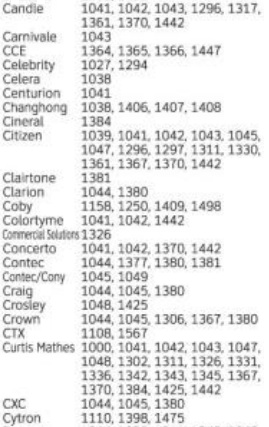
I have the remote control codes arranged alphabetically. So you just have to check the label and click the pictures for you to get the codes.

REMOTE CONTROL CODES: 

FOR TELEVISIONS:
To program your remote control with your tv:
1. Hold both the TV and the ENTER/OK buttons at the same time.
2. After a second or two, release and enter the code corresponding to the brand of your TV.
3. To check if it is working, try powering the tv set off and on. If the code that you tried didn't work, try another code and follow the same steps.
4. Once you get it working, as a constant reminder press the AT&T button to prevent any inconvenience. I have the codes alphabetically arranged. Just click the picture that corresponds to the brand of your tv.
By the way, for the TV combos remote control codes, please refer to part 4 of programming the remote control.

figure 3. A

figure 4. B


figure 5. C
figure 6. D-E


figure 7. F-G
figure 8. H-I
figure 9. J-L
figure 10. M
figure 11. N-O
figure 12. P
figure 13. Q
figure 14. S

figure 15. T

figure 16. U-Z

For DVD's and other devices check part 2 of this blog.